Read and customize a price chart
On this page
The chart on a stock's page shows how its price has moved, from the last few hours to the whole time it has traded. You can change how far back it goes, how it is drawn, what is laid over it, and measure any stretch of it.
#The toolbar
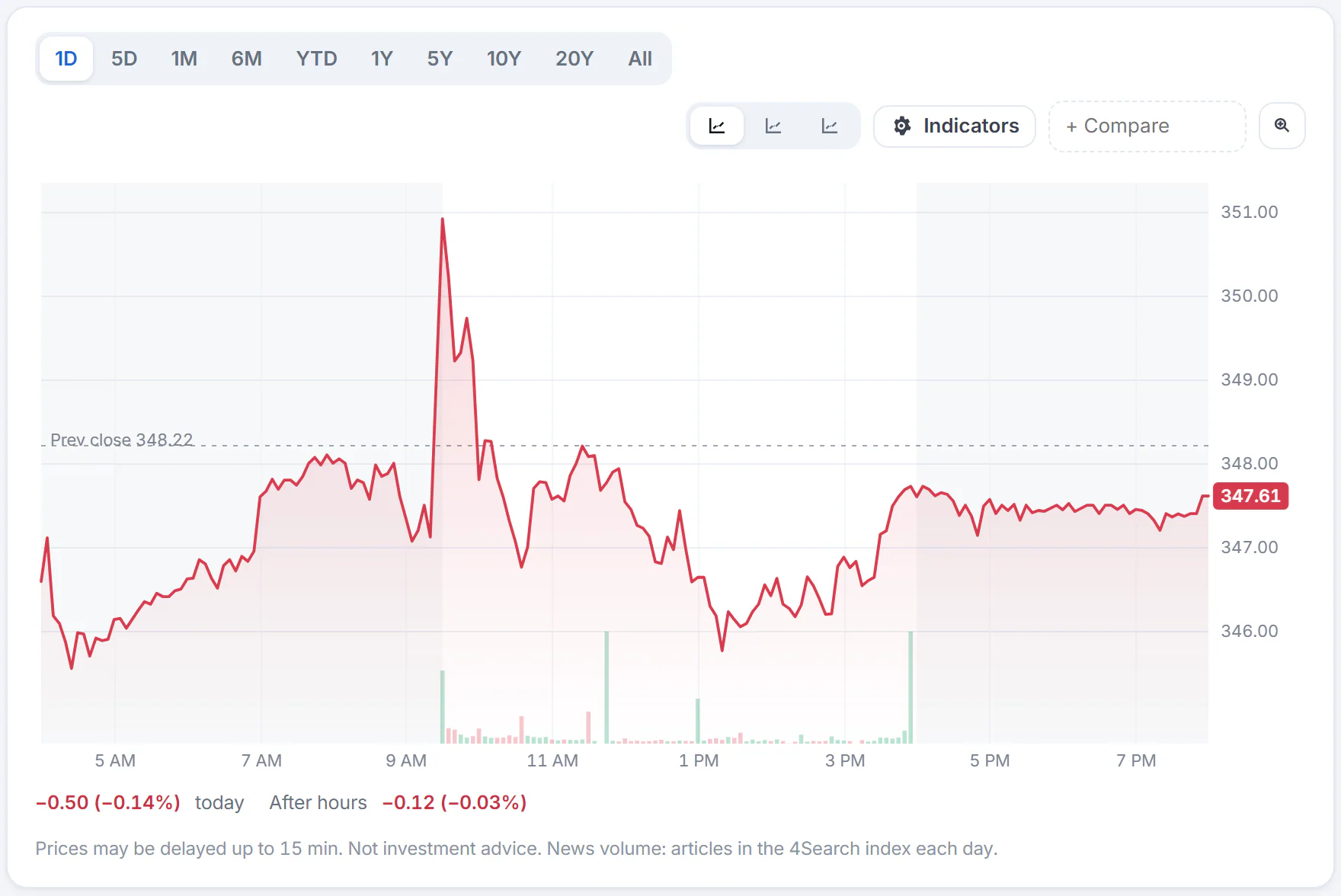
The chart card. The range buttons are on the left; the drawing style, indicators, compare box and expand button are on the right.
- 1How far back the chart goes
- 2Mountain, line or candles
- 3Indicators menu
- 4Add a symbol to compare
- 5Expand chart
- 6Change over the period shown
- Range buttons: 1D (today), 5D, 1M, 6M, YTD (since January 1), 1Y, 5Y, 10Y, 20Y and All. Select one to redraw the chart for that period.
- Chart type: Mountain (a line with a shaded area under it, the default), Line and Candles. Hover over an icon to see its name.
- Indicators: a menu of extra lines and panes (below).
- + Compare: add another symbol to the chart (below).
- Expand chart (the magnifying glass): makes the chart fill the screen. Press Esc to shrink it again.
The line is green when the stock is up over the period shown and red when it is down. On the 1D chart the lightly shaded stretches at either end are the trading sessions before the open and after the close, and a dashed line marks the previous close.
#Read a day, a week, a year
Move the pointer along the chart. A dashed crosshair follows it, the price appears on the right edge, the date or time appears along the bottom, and the line under the chart gives the details for that point.
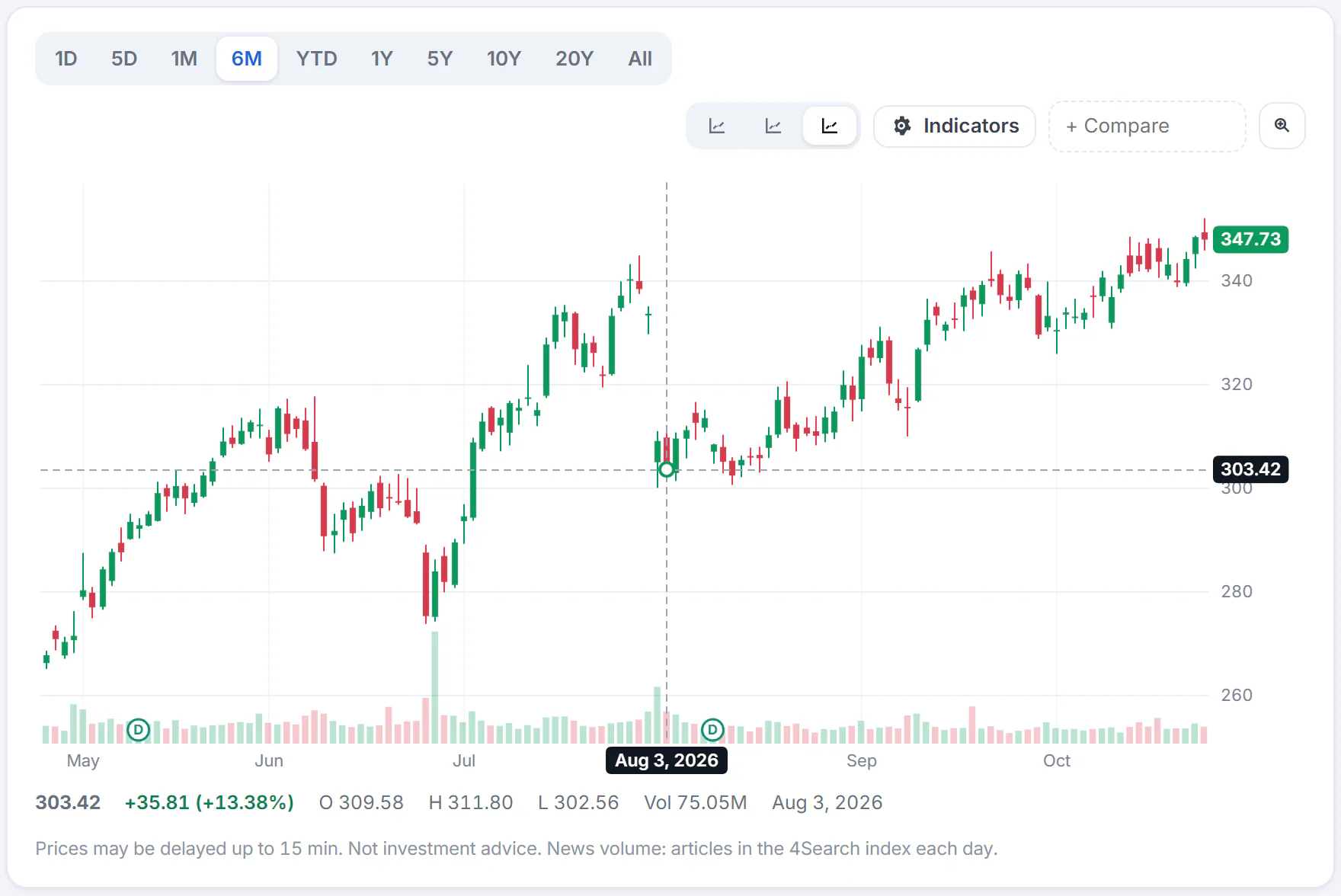
On a candlestick chart each candle is one trading day. The line under the chart gives that day's price, open, high, low and volume.
- 1The range is now six months
- 2Candles selected
- 3Move the pointer along the chart to read any day
- 4Price, open, high, low and volume for that day
In a candlestick chart each candle is one period, a day on the six-month chart. The thick body runs from the open to the close: green when the close was higher than the open, red when lower. The thin line, called the wick, reaches from the low to the high. The bars at the bottom are the volume, the number of shares traded.
On a phone, touch and slide along the chart instead. With the keyboard, focus the chart and use ← and → to move the crosshair, and Esc to clear it.
#Add indicators
Indicators are calculations laid over the price to help you see a trend. Open the Indicators menu and tick any of them.
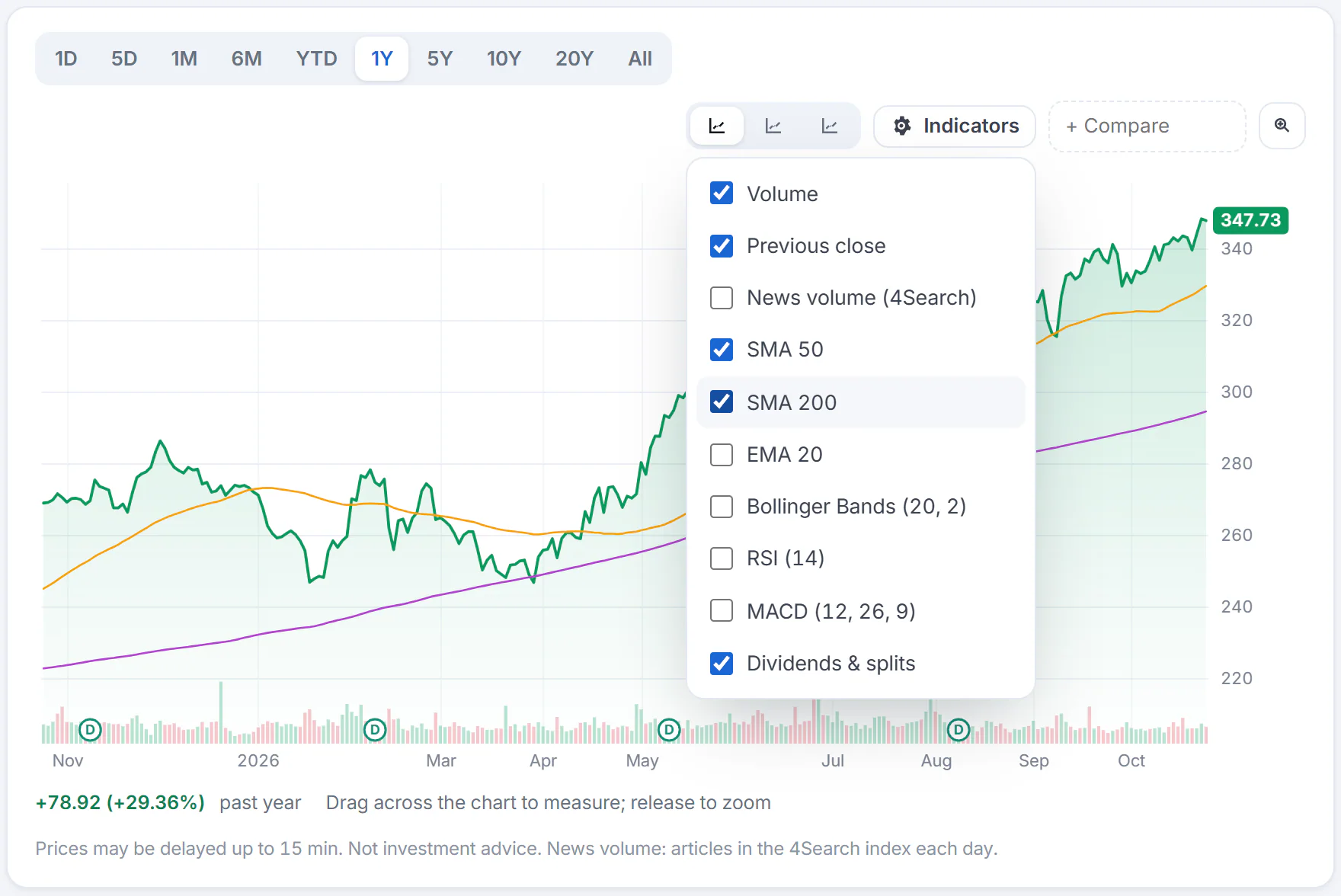
Tick an indicator to draw it. Here the 50-day and 200-day averages are on.
- 1Tick what you want on the chart
- 2The 50-day and 200-day averages, drawn over the price
- 3Their values for the day under the pointer
| Indicator | What it shows |
|---|---|
| Volume | Shares traded in each period, as bars along the bottom (on by default) |
| Previous close | A dashed line at yesterday's closing price on the 1D chart (on by default) |
| News volume (4Search) | A pane with the number of articles about the company each day, from the 4Search news index. It appears on ranges longer than one day |
| SMA 50 and SMA 200 | The simple moving average: the average closing price of the last 50 or 200 periods, which smooths out day-to-day noise |
| EMA 20 | The exponential moving average of the last 20 periods, which gives more weight to recent prices |
| Bollinger Bands (20, 2) | A band around the 20-period average; the price touching an edge shows an unusually big move |
| RSI (14) | A momentum gauge (RSI) from 0 to 100 in its own pane. Values above 70 are often read as "stretched" and below 30 as "oversold" |
| MACD (12, 26, 9) | A momentum pane built from two moving averages. RSI and MACD share the same pane, so turning one on turns the other off |
| Dividends & splits | Small D and S markers where a dividend was paid or the shares were split; hover over a marker for the details (on by default) |
Indicators are tools for reading a chart, not signals to act on. They describe the past.
#Compare with other symbols
Select + Compare, type a ticker or a name, and pick a match or press Enter. The chart switches from price to percentage change from the start of the period, so every line starts at 0% and you compare how much each moved rather than what each costs.
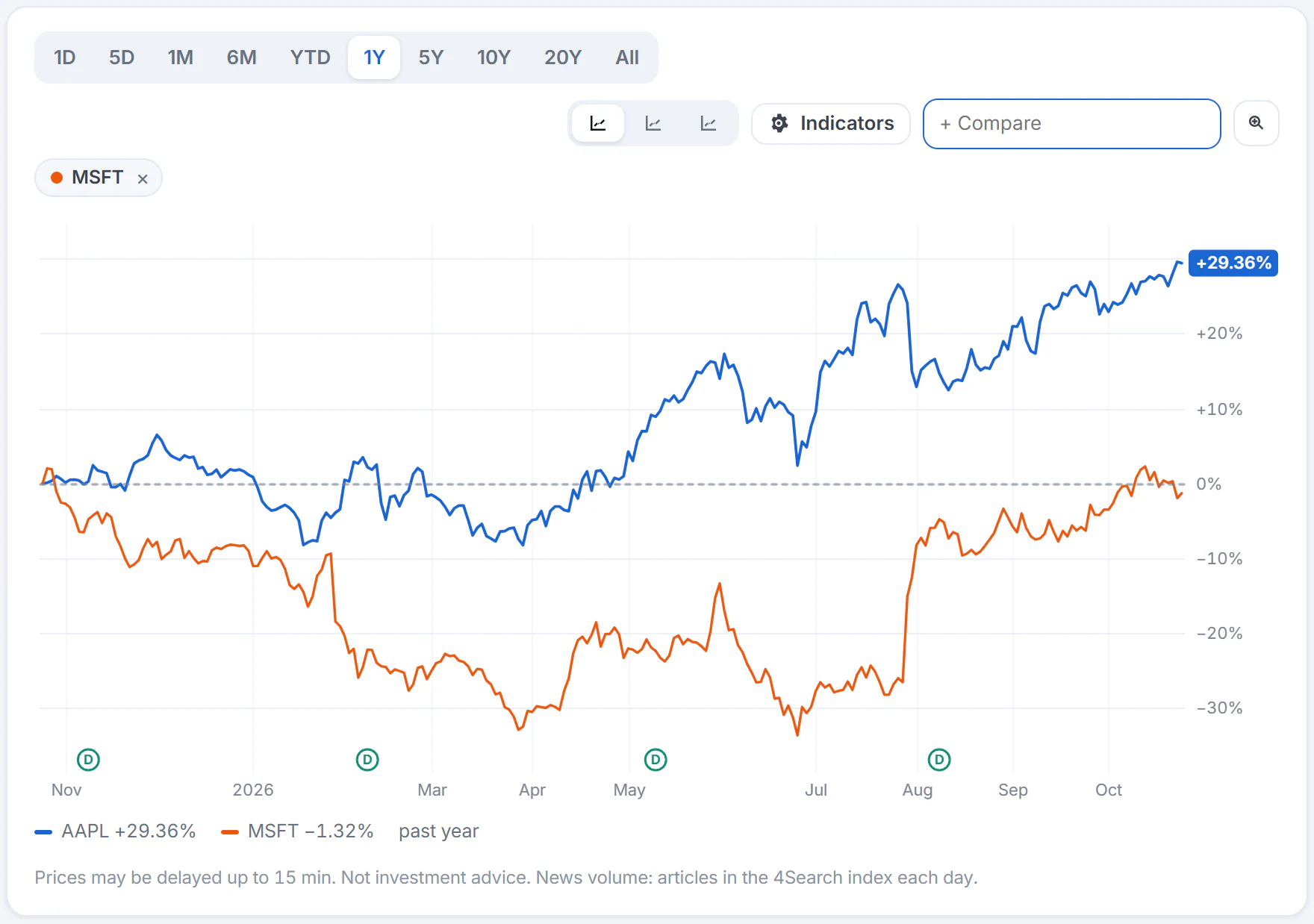
With Microsoft added, both lines start at 0% a year ago. Select the cross on a colored chip to remove a symbol.
- 1Type a symbol and press Enter
- 2Each added symbol, with a button to remove it
- 3Every line starts at 0%, so you compare change, not price
- 4The change of each over the period
You can add up to five symbols. The line under the chart lists each symbol's change over the period. For a full table of figures side by side, see Compare stocks.
#Measure and zoom
On any range longer than one day, drag across the chart. The stretch you cover is shaded and a label gives the price change, the percentage change and how many sessions or bars it spans. When you let go, the chart zooms to that stretch, and a Reset zoom button appears. Double-click the chart, or press Esc, to zoom back out.
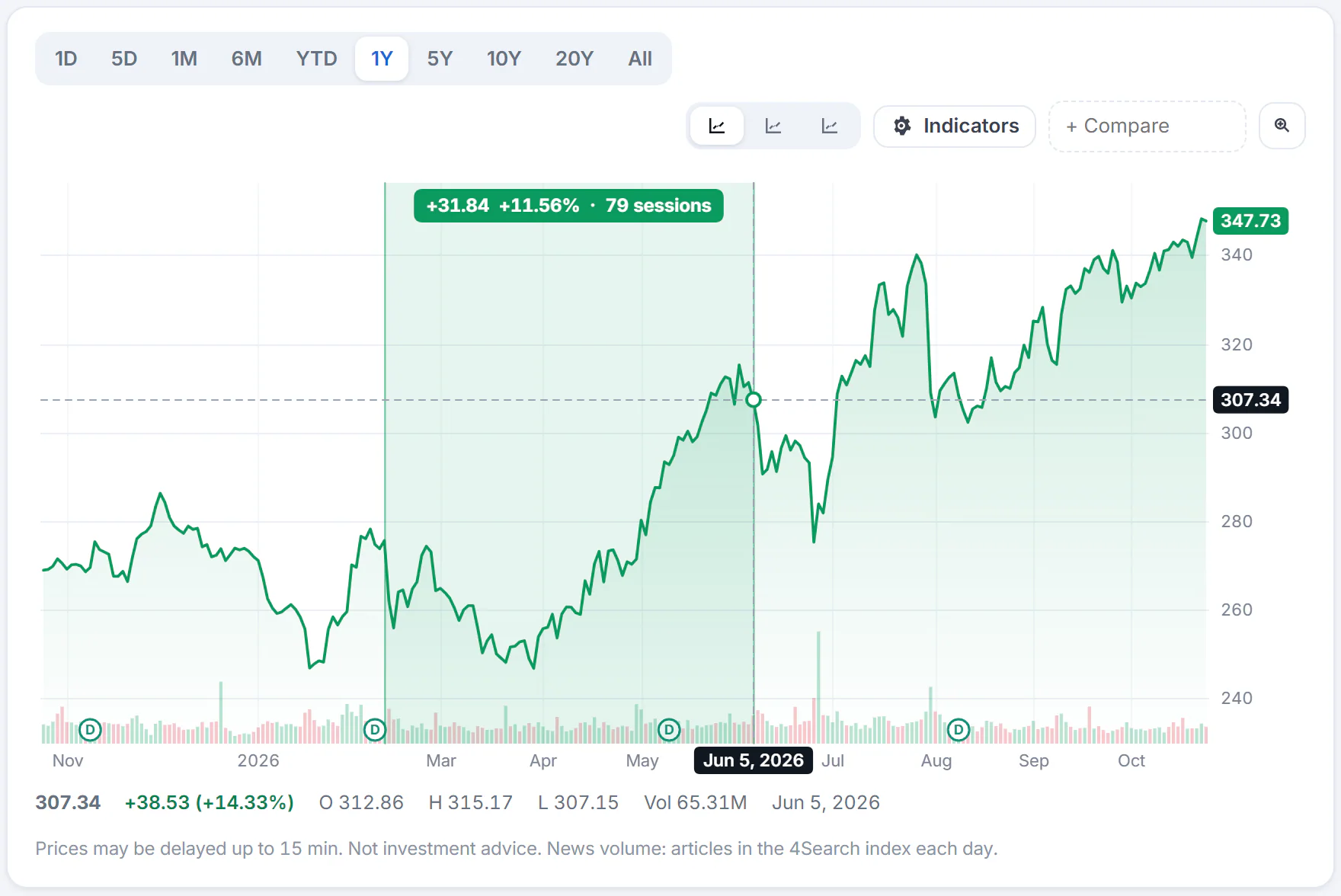
Dragging across the chart measures the move: here +11.56% over 79 sessions.
- 1Drag across the chart; the shaded stretch is measured
- 2Release to zoom in; Reset zoom brings it back
#Common questions
Why is the chart blank or say "No chart data for this period"?
No price history could be loaded for that instrument and period. Try a shorter range, or reload the page in a moment.
Can I draw trend lines on the chart?
No. You can add indicators, compare symbols, and measure a move by dragging.
Why can I not drag to measure on the 1D chart?
Measuring works on ranges longer than one day. On the 1D chart, hover to read each point.
Do the charts update during the day?
The last point of a 1D chart follows the latest price while the page is open. Prices may be delayed by up to 15 minutes. See How fresh the data is.
What do the numbers in brackets mean, such as RSI (14)?
They are the number of periods the calculation looks back over. On a daily chart a period is a day.